Running a farming mission
Plan a hedged farming mission, read its price per $1M, start it, follow each cycle, stop it, and fix common refusals.
This page walks through a mission from plan to finish. For what farming is and which venues it runs on, see Farming.
What you need first
- A wallet signed in to ProFunding. Missions belong to the wallet that started them.
- The farm venue (where the volume lands) connected. Connecting saves its trading key, encrypted, to your ProFunding account, which lets the mission trade with your tab closed. See Wallets and keys.
- Margin on at least one hedge venue, a different venue from the farm venue.
- Telegram linked to the same wallet, if you want cycle reports and alerts. See Telegram.
You can price a target without a wallet: the planner prices it at the capital it would need.
Plan the mission
- Open Farming, or click Farm this on a campaign under Campaigns.
- Pick how to set the goal: From a campaign, My own target or Until I stop.
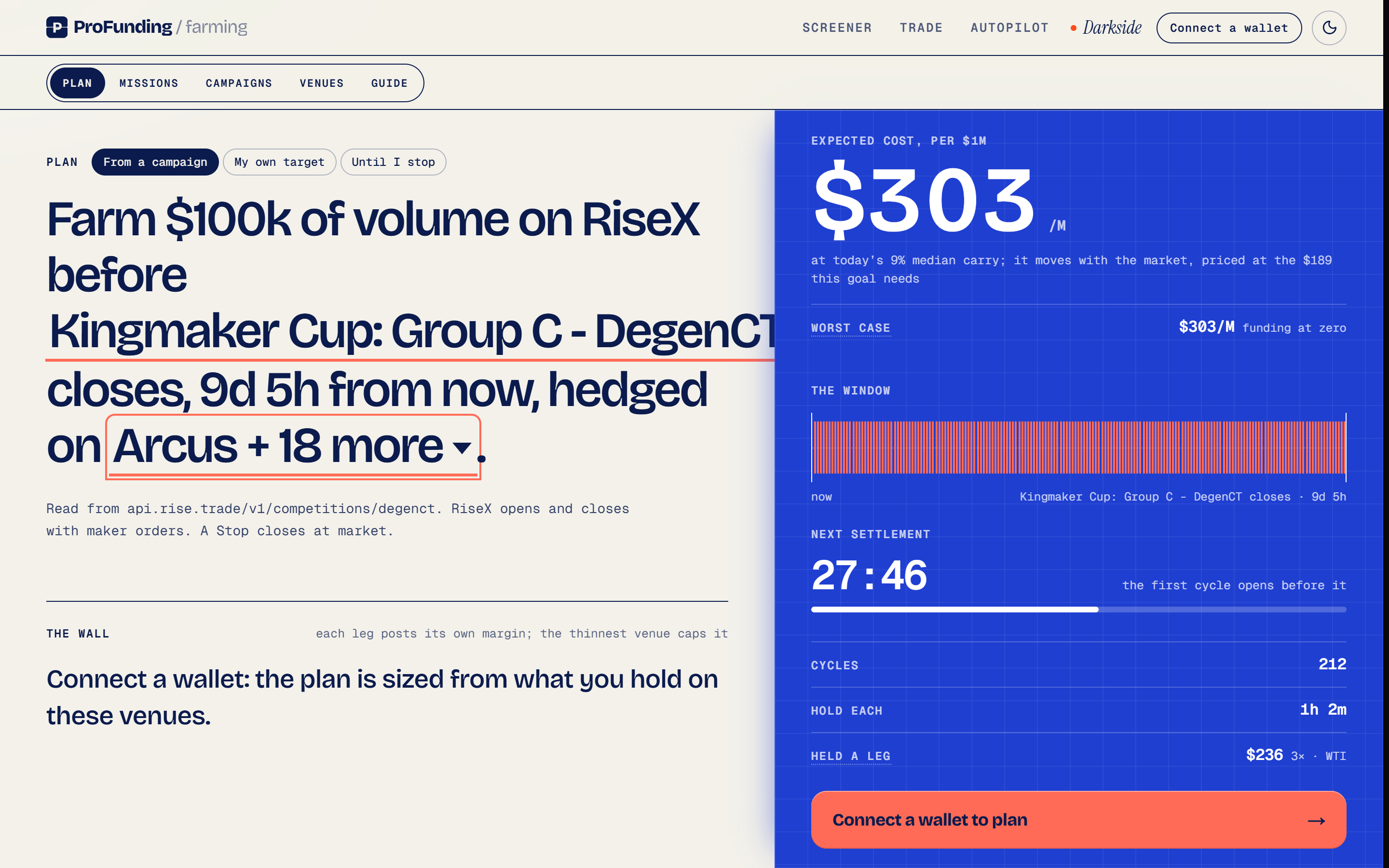
- Read the goal sentence, for example "Farm $1M of volume on TxFlow within 7 days, hedged on Lighter." Underlined words open a tray to change them. Words a campaign fixes stay plain.
- Click the hedge words and pick one or more venues under Hedge on, or click Hedge on all. Nothing is priced until at least one hedge is picked. The cheapest hedge per symbol is routed.
- Check The wall and read the price (both below).
- Clear any step the button shows, then click Approve at $X/M worst.
Goal options
| Option | You set | It runs until |
|---|---|---|
| From a campaign | An open campaign. Its venue, volume and deadline fill in | The target is reached or the deadline passes |
| My own target | Volume ($250k to $5M presets, or any amount), farm venue, window of 3, 7, 14 or 30 days | The target is reached or the window ends |
| Until I stop | Farm venue, market (a ticker, or The cheapest each round), leverage (1×, 2×, 3×, 5× or 10×), hold (1m to 24h) | You stop it |
For a daily campaign (a volume bar that resets at 00:00 UTC), choose Today only or Every day until the campaign closes. Every day runs one mission per UTC day on a single approval.
On a target mission you don't pick size or leverage. The planner sets both from your balances, up to 3×, and every cycle holds at least an hour so it can catch a funding settlement. In Until I stop, each round's order size is the thinnest venue's margin times your leverage, and each round starts only while its worst case is within 10% of the price you approved.
Read the wall
The wall lists every venue in the plan, thinnest first. Each leg posts its own margin, so the venue holding the least sets the size. When capital is the limit, the wall names the venue to top up and how much, with a Top up button.
| State | Meaning | Fix |
|---|---|---|
| no account | No account connected on this venue | Connect |
| signed out | The saved session or key expired | Sign in |
| unreadable | The balance read failed. Not counted as zero | Read it again |
Open the wallet pill at the top right to connect venues or deposit. It opens Your money, the same sheet the Trade page uses.
Read the price
The price panel shows the server's quote. It re-prices on every change and every 60 seconds while the tab is visible.
| Number | What it is |
|---|---|
| Expected cost, per $1M | Trading costs minus the funding the route is expected to collect, discounted for how much that funding swings. A forecast. When funding should pay more than the fees, it reads Expected, paid per $1M |
| Worst case | Trading costs with no funding credited, or with a funding cost where the route's recent funding runs against the position. This is the price you approve |
Trading costs are the fees on both legs (including any ProFunding fee), the half-spread crossed on each market fill, and book impact at your order size. Where ProFunding's past cycles on a route measured more hedge slippage than the model, the worst case uses the measured figure.
A target quote also shows the number of cycles, how long each holds, the size of each leg, the route and its fee in bps, and the worst case in dollars for the whole target.
Clear the last steps
Until everything is in place, the button at the foot of the price panel names the next thing to do instead of Approve:
- Connect, Join through our link, Approve or Deposit on the farm venue. Where ProFunding can't read who referred you, choose I joined through your link or pay the builder fee instead.
- One step to start, when the route needs a setup step on the hedge venue. The panel asks you to open the hedge account through ProFunding's referral link, or to approve a builder fee there (it shows the rate). Click Done, check again to re-price.
- Join the campaign on TxFlow, for TxFlow campaigns. Joining is one click on TxFlow and moves no funds.
- Trade on wallet, if you hold a venue from more than one wallet: pick the wallet for each leg.
Approve and start
Click Approve at $X/M worst. The server checks the plan again before anything is created:
- If the fresh worst case is more than 10% above the one you approved, nothing starts. Approve the new price or change the plan.
- It checks your farm venue account (see the table under Common refusals).
- It checks that the farm venue can fund the first cycle, and if not, says how much to top up there first.
When everything passes, the page opens the new mission.
Follow a running mission
Missions shows one lane per mission. A target lane has a pace bar: the fill is volume farmed, the thin line is how much of the window has passed, and the fill turns amber when the mission falls behind.
Click a lane to open the mission page.
| Section | What it shows |
|---|---|
| Pace | The pace bar, percent farmed, cycles and time left |
| This cycle | The current cycle's phase, both legs, the amount not yet hedged, and the distance to liquidation |
| Settlements | One square per funding settlement of the current cycle: collected, missed or unread |
| What it has made | Volume farmed, open interest held, and funding collected net of the hedge |
| Needs you | Anything you have to act on, such as a top-up |
| Net result | Price, fees and funding across finished cycles |
| Cycles | Each finished cycle with its legs, settlements and fills |
The side panel shows the realized price: the result so far per $1M, net of price, fees and funding, marked within or over the worst case you approved.
A cycle opens before a funding settlement, holds through it, then unwinds. While it builds, the farm leg rests maker orders and each fill is hedged on the hedge venue. At the planned exit, the farm leg's close rests as a maker order, and whatever hasn't filled when time is up closes at market. Between cycles the mission prices the remaining target again and can pick a different market or hedge.
On a target mission the approved worst case guides the run but isn't a hard cap. While there's time, the mission waits out a dearer window. Near the deadline it accepts higher prices, and when time is short it trades the cheapest route at its price. If the realized cost runs well past the estimate, you get one Telegram message and the mission carries on.
Capital is fixed at Start. Don't deposit or withdraw on the mission's venues while it runs, except for a top-up the mission asks for under Needs you. A daily series can take more capital after a deposit with Raise capital after a deposit.
Stop a mission
Click Stop mission, then Flatten both legs and stop. Both legs close at market, which costs more than the approved worst case assumes, and it can't be undone. On a daily series, Stop after today ends the series once today's bar or UTC day is done.
When a mission finishes with volume left, Continue opens the planner with the remaining volume and time.
Telegram notifications
Farming messages arrive under the bot's Trade executions category:
- one line per finished cycle on a target mission, with volume, funding and cost so far
- a low-balance notice when the next cycle shrinks, with the top-up that restores full size
- a pace notice when the target can't be reached at the mission's capital
- liquidation warnings, and a message if both legs are flattened under 10% from liquidation
- alerts when a cycle parks, a close is retried, or an order can't be confirmed on the venue
Common refusals and the fix
When the planner can't meet a goal, the price panel reads Can't be planned with the reason.
| Reason shown | What to do |
|---|---|
| the books can't move this much volume by the deadline | Lower the target or choose a longer window |
| every cycle would have to be built and unwound faster than the books allow | Push out the deadline or lower the target |
| this capital can't fund one position on both legs | Top up the thinnest venue on the wall |
| this market is too small | Add hedge venues or pick another farm venue |
| no live market on this venue is listed on a hedge venue you allowed | Add a hedge venue |
| an order book couldn't be read in time | Try again in a minute |
| this venue farms only on weekdays | Wait for the markets to reopen |
Start runs its own checks:
| What you see | What to do |
|---|---|
| The price moved while you approved | Approve the new price, or change the plan |
| Top up $X on the farm venue first | Deposit there, then approve again |
| Your Aster account is in Hedge Mode | Switch it to One-way Mode in the Aster settings |
| Reconnect Phoenix, or fund the Phoenix trading key with SOL (0.002 or more) | Reconnect, or send SOL for network fees |
| Reconnect Katana | The session or key expires before the cycle would finish |
| Extended is connected with a session that expires | Open the Extended connection and choose Make permanent |
| A venue didn't answer | Try again in a moment |
FAQ
Is the approved worst case a hard cap?
Not on a target mission: near the deadline it accepts higher prices, and when time is short it trades the cheapest route at its price. In Until I stop, a round whose worst case is more than 10% above your approved price waits.
Can I deposit or withdraw while a mission runs?
Avoid it. Capital is fixed at Start, so moving money reads as a gain or a loss. The exception is a top-up the mission asks for under Needs you.
What does Stop mission do?
It flattens both legs at market, which costs more than the approved worst case assumes, and it can't be undone.
Questions?
Ask in our Telegram chat. Traders compare pairs, venues and fills there, and the team answers questions.